
Add products to a customer's list
Find a customer's list in Projects & Lists and add products to it by SKU, by name or from the catalog, so you can build a selection with them on the showroom floor.
Projects & Lists is where you keep each customer’s lists of products. A project and a list are the same thing: a named set of products for one customer. The page is built for an iPad on the floor.
Steps
-
In the sidebar, select Projects & Lists.
-
In the search box, type the list name or the customer’s email.
-
Select the list’s row. The full list page opens on the Items tab.
-
In Quick add, type a SKU or words from the product name.

-
Next to the product you want, select Add.
-
To add more of the same product, select Add 1.
-
To browse the catalog instead, select Add products.
-
On any product in the catalog, select Add to list.
-
When you’re finished, select Done to go back to the list.
Good to know
Find a list faster
- Search looks at list names and customer emails only, not product names.
- Select Filters to narrow the table by Salesperson (All, Mine, Unassigned, or one salesperson by name) or by Content (All, With items or Empty).
- Lists are sorted by most recently modified first, 25 to a page.
- A list named Favorites (marked Default list) is the customer’s default list. When the Customer column reads Guest session, the list has no customer name or email, usually because a shopper saved it without signing in.

Other ways to open a list
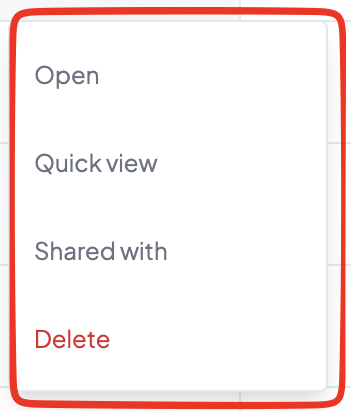
Each row has a ⋯ menu with Open, Quick view, Shared with and Delete. Quick view opens the list in a panel over the table instead of the full page.
Start from the catalog
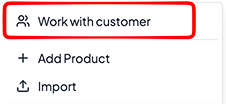
You can also start from Products. Open the ⋮ menu and select Work with customer, pick the customer, then pick one of their lists or New list.
- While you’re adding, an Adding to bar shows the list name, the customer’s first name, the item count and the list value.
- Switch list moves you to another list. Done takes you back to the list’s Items.
- Once a product is on the list, Add to list turns into a − / + quantity stepper.
- Work with customer doesn’t show while Privacy mode is on, when you’re already working on a list, or if you can’t edit lists.
Quick add
- Quick add shows up to 8 results. Results stay open so you can keep adding, and show On list with the count once a product is on the list.
- Press Enter to add a single exact SKU match. Press Esc or tap outside to close the results; your text stays.
- Search matches every word you type against the product name or SKU, in any order. Up to 6 words count, one-letter words are ignored, and descriptions aren’t searched.
- A product with no price reads Call for price.
Quantity and room
- Each item has a − / + quantity stepper. The lowest quantity is 1.
- Select Add room to label an item with a room, such as Kitchen. It’s optional.
Swap for a similar product
- In List view, select Alternates on an item to see up to three similar products from your catalog.
- Swap replaces the item and keeps its quantity, room and note. Add alongside adds the similar product as a new item.
- If there are no similar products, you’ll see No similar products found.
Stock
- Under the finish, a colored dot and your website’s own stock wording show for each product. Green means in the showroom, blue means from the manufacturer, amber means out of stock.
- When stock is unknown, nothing shows.
- A product hidden on your website shows Hidden on website to staff only.
Who added what
Every item change records who made it: a staff member (first name and last initial), Website or Customer. Who added each item shows under it, and every change is on the History tab. Items added before this was recorded show no name.
Totals and quote tax
- The list shows a Subtotal, Quote tax and Total. Choose Workspace rate, No tax or Custom %. If your workspace uses Stripe Tax, the list shows Tax calculated at checkout and no total.
- Quote tax only affects the quote: the list page, the quick view and the printout.
- If any item has no price, the subtotal reads Some not priced and no tax or total is shown.
With a customer looking at the screen
Turn on Privacy mode with the eye button in the top bar before you turn the iPad around. Quick add, Alternates and the quantity stepper stay. The Details, Shared with and History tabs, the quote tax picker, Add room and delete controls are hidden. Add products, Invite, Switch list, who added each item and Hidden on website are hidden too. The Comments tab stays.
Delete a list
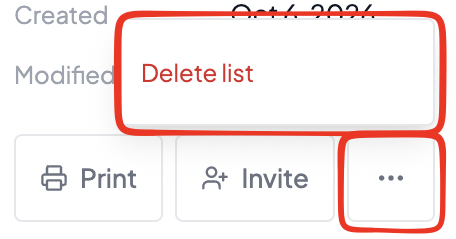
On the full list page, select ⋯ (More list actions) next to Print and Invite, then select Delete list and confirm. The ⋯ button is hidden in Privacy mode.
Who can do this
Staff, Marketing, Manager and Admin users can all open Projects & Lists and create and edit lists. If your account limits visibility, Staff and Marketing see only their own and unassigned lists.