
Reply to a signal
Open a form someone sent from your website, reply to them by email, then mark it read or archive it so your team can see it's been handled.
Signals is where the forms people send from your website arrive: contact requests, enquiries and sign-ups. Each one is a signal with a status of New, Read or Archived.
Steps
-
In the sidebar, select Signals.
-
Under Status, choose New to see only the signals still marked New.
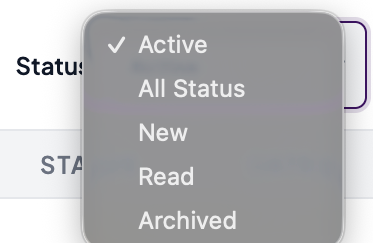
-
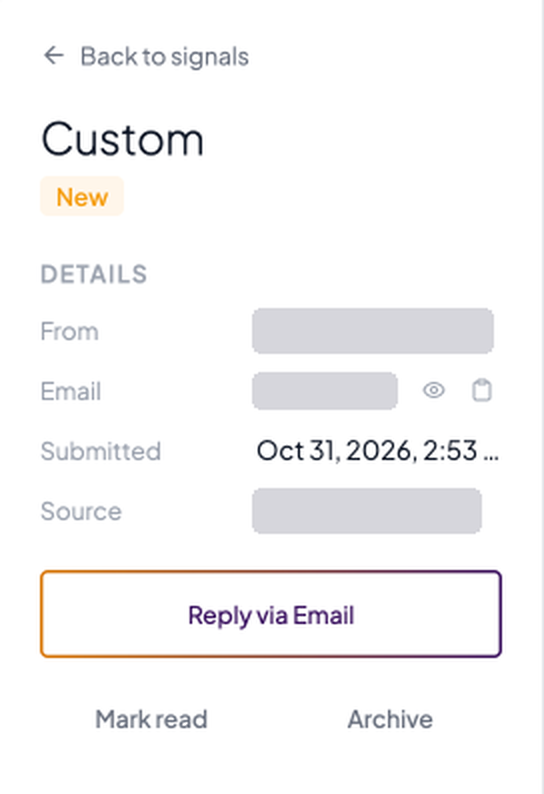
Select the signal’s row. Its details open in a panel.
-
Read the Message tab.
-
If the form sent more than a message, there’s a Fields tab with the number of extra fields. Select it to see the rest of what they filled in.
-
Select Reply via Email. Neural Core copies the sender’s email address, and your email app opens a reply to them with the subject “Re: Your form type request”.
-
Write and send your reply from your email app.
-
Back in the panel, select Mark read.
-
If nothing more needs doing, select Archive.
Good to know
What the panel shows
- From, Email, Phone, Submitted and Source. The email and phone number are masked until you select the eye button, and so are any fields that look like personal details. The copy button copies them.
- Anything the sender didn’t give is left out. With no phone number there’s no Phone row or Call button, and with no email there’s no Reply via Email.
- A signal sent without a message reads “No message with this submission”.
- Select Back to signals to return to the list.
- A signal can carry a Consent-limited badge. It means the person has opted out of marketing. You can reply to their request, but don’t add them to marketing emails or lists.
Statuses
- Mark read moves a signal from New to Read.
- Archive files a signal away. Restore, in the signal’s panel, brings an archived signal back as New.
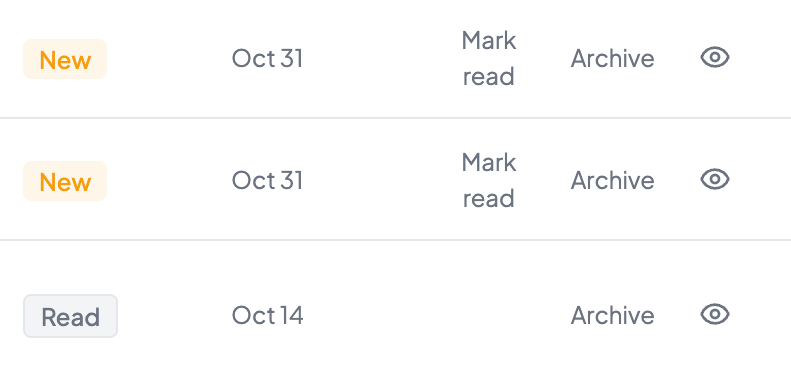
- In the list, a New row has Mark read and Archive, and a Read row has Archive, so you can clear signals without opening them. To restore an archived signal, open it.
Who can do this
Staff, Marketing, Manager and Admin users can all open Signals, reply, and mark signals read or archived. Signals isn’t in the sidebar in the Master view.
With a customer looking at the screen
Turn on Privacy mode with the eye button in the top bar or the Privacy mode switch at the top right of the signal’s panel. They’re the same switch.
While Privacy mode is on, the Signals page shows a Customer view is on screen instead of the list, and Export is gone. An open signal shows only its form type, status, submitted date and, if there is one, the Consent-limited badge. The message, the fields, the sender’s details, Reply via Email, Call and the status actions are hidden.