
Contacts overview
Contacts lists the people in your account with how to reach them, where they came from and how much activity they have, so you can look someone up before you call or reply.
Contacts is a list of the people in your account. Each contact shows how to reach them, their company, where they came from and how many activities they have. You look contacts up here; you don’t edit them here.
Contacts and Customers are different lists. Customers are people with a login on your website, with their lists and orders. Contacts come from your CRM.
Steps
-
In the sidebar, select Contacts. The heading shows how many contacts there are.

-
To narrow the list, choose a Status, or type in Search contacts.
-
Select a contact’s row. Their details open in a panel.
-
When you’re finished, select Back to contacts or Close.
Good to know
What the list shows
- Name, with the job title underneath when there is one, and Status always show.
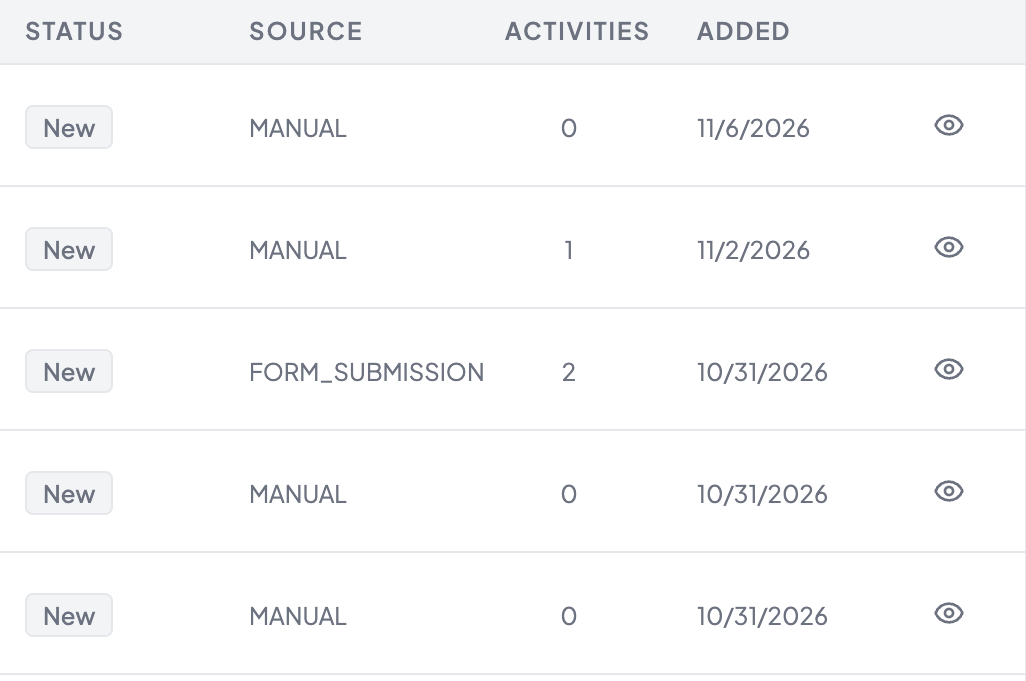
- Wider screens add, in order: Added (the date the contact was added), Contact, Company, then Source and Activities. On an iPad you’ll usually see Name, Status, Added and Contact.
- Contact is the email and phone number, masked. Select the eye button to show one, or the copy button to copy it.
- A value that wasn’t recorded shows as a dash.
- The list shows 50 contacts a page, with Previous, Next and the page number.
What the panel shows
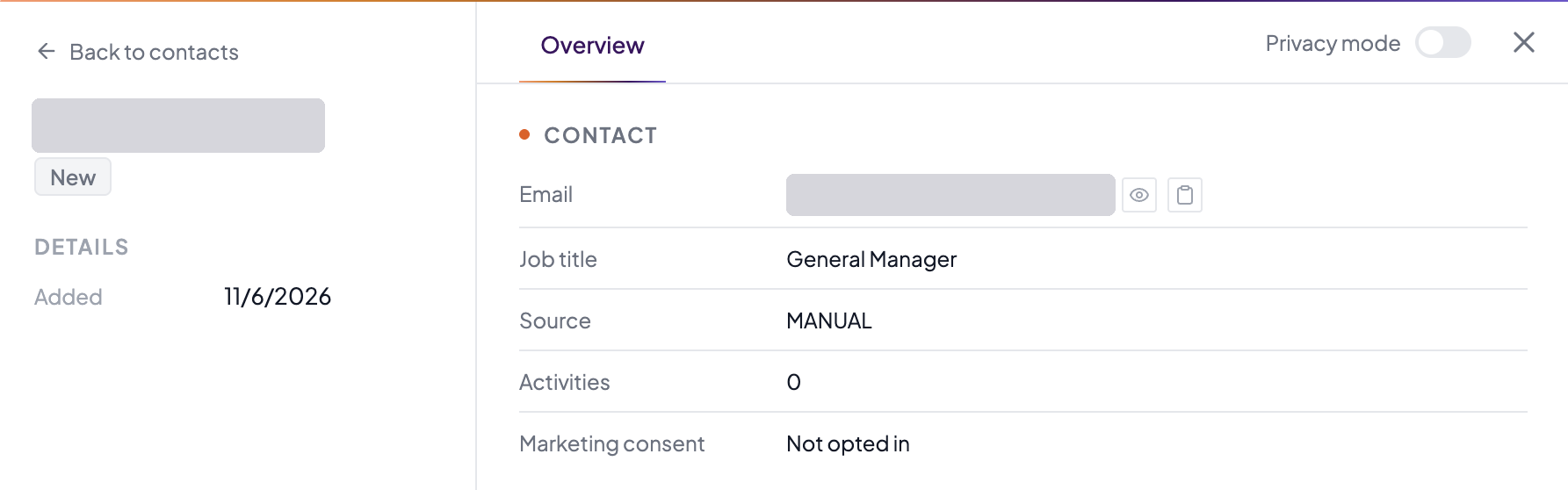
- The contact’s name, status and the date they were added. Beside the status, a GPC signal or Do not service badge can show.
- On the Overview tab: Email, Phone, Company, Job title, Source, Activities and Marketing consent (Opted in or Not opted in), then Tags and Notes.
- Anything that wasn’t recorded for the contact is left out.
- The panel is read-only, and there’s no separate full page for a contact.
Who can do this
Staff, Marketing, Manager and Admin users can all open Contacts. Contacts isn’t in the sidebar in the Master view.
With a customer looking at the screen
Turn on Privacy mode with the eye button in the top bar or the Privacy mode switch at the top right of the panel. They’re the same switch.
- The Contacts page shows a Customer view is on screen instead of the list.
- In an open contact, email and phone stay masked with no reveal or copy, and notes and tags are hidden.