
Signals overview
Signals is where the forms people send from your website arrive, so your team can see what's new, reply, and keep track of what's been handled.
Every form someone sends from your website, such as a contact request or a sign-up, arrives in Signals as a signal. Each signal has a status of New, Read or Archived, so your team can see at a glance what still needs an answer.
Steps
-
In the sidebar, select Signals.
-
Check the counts at the top to see how many signals are New.

-
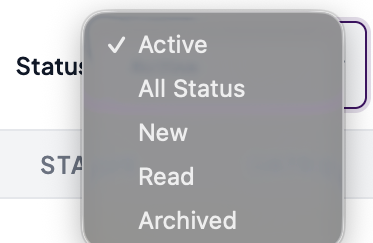
Under Status, choose which signals to show.
-
Select a signal’s row to open it.
Good to know
What the list shows
- On an iPad, each row shows the form type, the sender’s name, the status and the date it arrived. Wider screens add the masked email and then the message.
- New signals carry a small dot, and a signal can carry a Consent-limited badge. It means the person has opted out of marketing: you can reply to their request, but don’t add them to marketing emails or lists.
- A New row has Mark read and Archive, and a Read row has Archive, so you can clear signals without opening them. To restore an archived signal, open it.
- The list shows up to 50 signals a page. When there’s more than one page, use Previous and Next to move between them.
- The search box looks at names and emails. Select Refresh to reload the list.
- Someone who asked to have their details erased is left out of the list and the export. Rarely, a signal that was never linked to a contact stays in the list with its details removed: a dash in place of the name and no email, message or fields.
Statuses
- New: nobody has marked it read yet.
- Read: someone on your team has marked it read.
- Archived: filed away. Restoring it makes it New again.
- Status starts on Active, which shows New and Read signals and leaves out archived ones. You can also choose All Status, New, Read or Archived.
- The counts at the top cover every signal that matches your search, whatever Status you’ve chosen.
Opening a signal
A signal opens in a panel with the sender’s details, the message, and anything else the form sent under Fields. From there you can reply by email, call if they left a number, and change the status. See Reply to a signal.
Alert emails
The View in Neural Core link in a form submission alert email opens the Signals page. Find the signal in the list from there.
Export
Export downloads the signals on your screen: the current page, up to 50, for the Status and search you’ve set. There’s no button to export the whole list. To export more, move to the next page and export again. Each export is recorded on its own.
- The file is named signals-date.csv. It has each sender’s name, email, phone, form type, message, status, source and date. Dates are in your own browser’s format.
- Names, emails and phone numbers are not masked in the file, so store and share it the way you would any customer list.
- A cell that starts with =, +, - or @ gets an apostrophe in front, so a spreadsheet won’t run it as a formula. A phone number like +1 555… shows as ’+1 555….
- An Admin can see who exported and when in Settings > Logs, and open the entry to see how many rows. The record never holds the search text or any customer’s details.
- If the export can’t be recorded, it doesn’t run and you’ll see an error. Try again.
- Export is turned off while the list is loading, when it’s empty, and in the Master view.
Who can do this
Staff, Marketing, Manager and Admin users can all open Signals, reply, export, and mark signals read or archived. Signals isn’t in the sidebar in the Master view.
With a customer looking at the screen
While Privacy mode is on, the Signals page shows a Customer view is on screen instead of the list, and Export is gone.