
Use Privacy mode with a customer
Turn on Privacy mode before you turn your screen toward a customer, so they see their own list and products without costs, notes or other customers' details.
Privacy mode is for the moment you turn the iPad toward a customer on the floor. It hides cost, internal detail, other customers and AI features on every page it covers.
Steps
-
Open the customer’s list, or the product you want to show them.
-
In the top bar, select the eye button. It turns into a purple Privacy on pill. A product quick view opens over the top bar, so it has its own Privacy mode switch.


-
Turn the screen toward your customer.
-
When you’re done, select Privacy on to turn Privacy mode off.
Good to know
How it behaves
- Privacy mode is off until someone turns it on.
- It’s set per browser and stays on until someone turns it off, including after you move to another page.
- It changes the sidebar, the account switcher and your Core agent on every page, and covers Projects & Lists, product quick views and product records, Customers, Orders, Signals, Contacts and Bookings.
What’s hidden everywhere
- Dealer cost and net pricing.
- Internal notes and staff detail.
- Empty or placeholder fields, such as “Not set” or “Unknown”.
- AI wording, the Design Assistant menu item, and the agent and AI usage buttons in the top bar.
- Delete, remove, invite and add controls.
- Customer emails and phone numbers are hidden, or shown masked with no reveal or copy.
- Your name and email in the sidebar, and the sign-out menu. The account switcher shows the current account only.
On a customer’s list
- Only Items stays. The Details, Shared with, Comments and History tabs are hidden.
- The quantity stepper stays, so the customer can say how many. A room that’s already set shows read-only, and Add room is hidden.
- Subtotal, Quote tax and Total stay. The quote tax picker is hidden.
- Quick add and Alternates stay, so you can keep adding and swapping products together.
- Other projects rows stay. + Project is hidden.
- The ⋯ menu with Delete list in the side panel is hidden, and Hidden on website never shows.
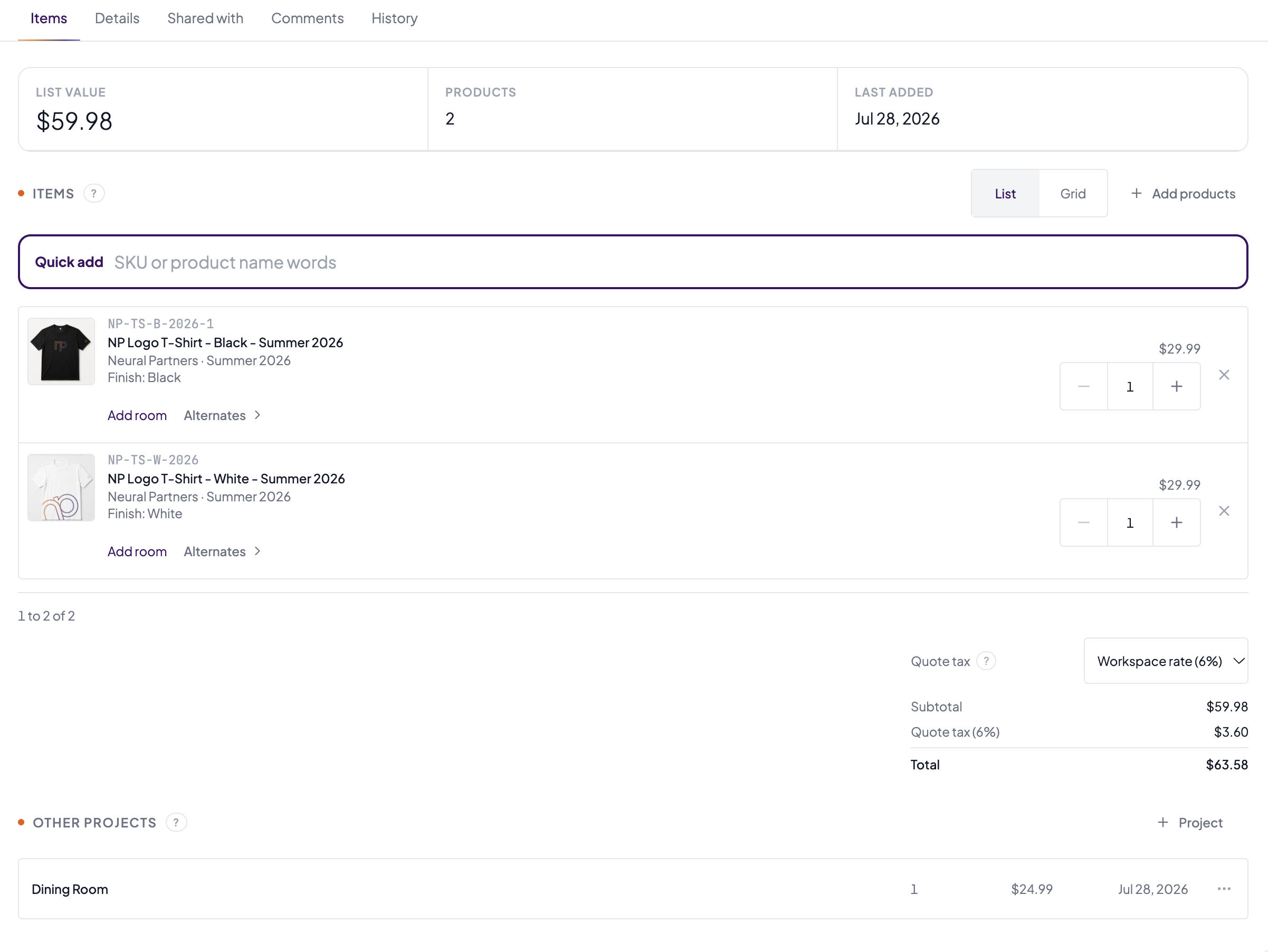
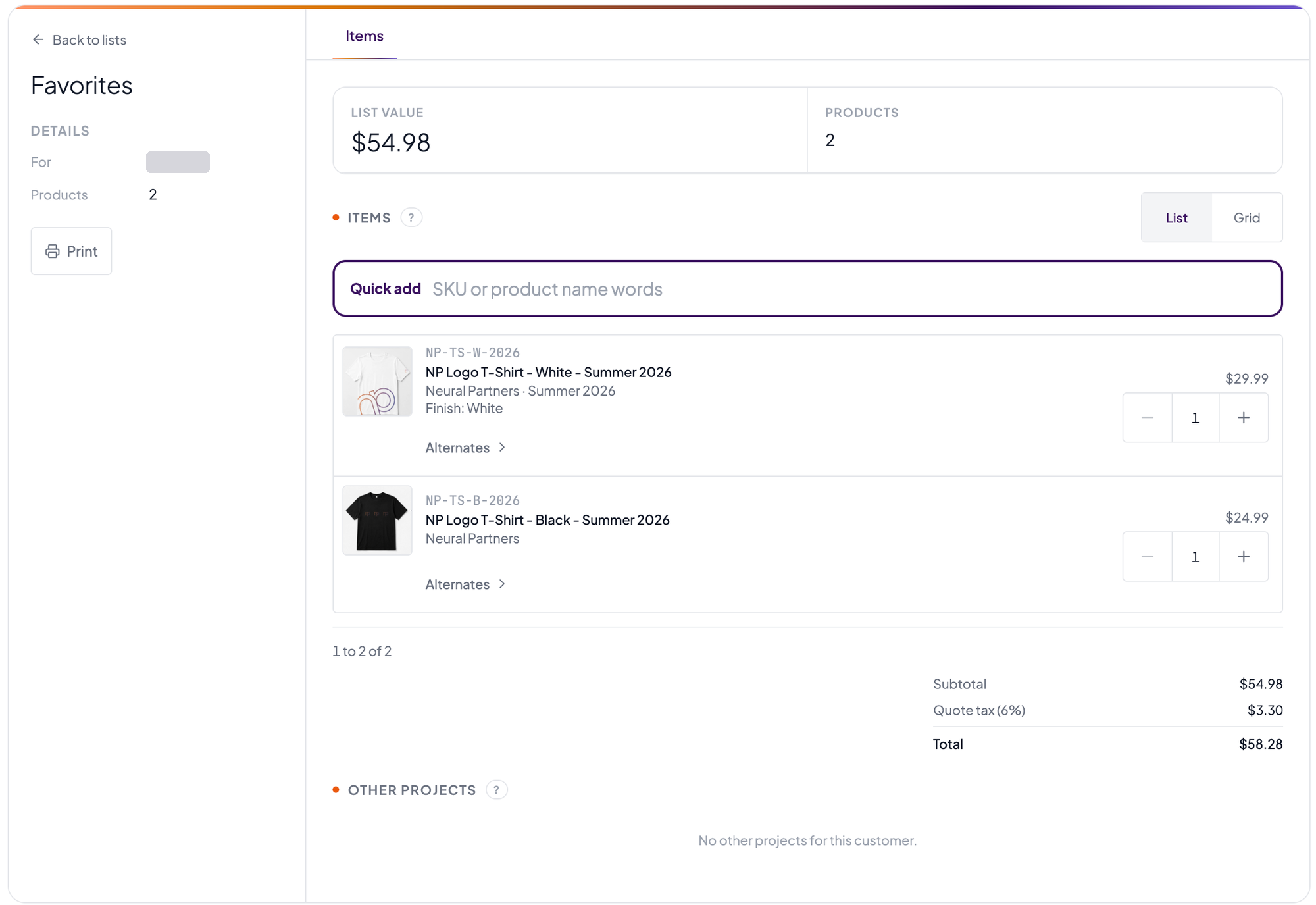
Other customers stay out of view
The Projects & Lists page shows a Customer view is on screen instead of the table, so other customers’ lists are never visible. From there you can go back to the last list you had open, or select Turn off Privacy mode. Customers, Orders, Signals and Contacts show the same screen, with a button back to the last customer, order, signal or contact you opened, and their Export buttons are gone. Bookings shows the same screen, with “Other guests’ bookings are hidden while Privacy mode is on.”
Customers, orders, signals and contacts
- Customer: Overview, Lists and Orders stay, with the customer’s name, your contact and the join date. Email, phone, notes, sign-in detail, Signals, Activity, the salesperson picker and history, and the create, resend and delete actions are hidden.
- Order: Items, Customer and Shipping stay, with email, phone and addresses masked and no reveal or copy. Notes, Activity and the status change are hidden.
- Signal: only the form type, status, submitted date and consent badge show. The message, form fields, sender details, reply, call and status actions are hidden.
- Contact: email and phone show masked, with no reveal or copy. Notes and tags are hidden.
Product pages
The Design assistant, Agents / SEO, Source & overrides and Similar sections are hidden.
Your Core agent
Your Core agent is off everywhere while Privacy mode is on. The Help button in the dock opens a plain Help & Support panel with an Email support link and no chat box.
Adding from the catalog
If you’re already adding products to a list from the catalog, the Adding to bar keeps showing the same details. You can’t start Work with customer while Privacy mode is on, so pick the list first. Switch list is hidden; Done stays.