
Customers overview
Customers is where you see each customer's account, salesperson, projects and lists, orders and signals, and open their full record.
Customers lists the people with an account on your website. For each one you can see who their salesperson is, how many projects and orders they have and what they’ve spent, and open everything about them in one place.
Steps
-
In the sidebar, select Customers.
-
Choose a view: All, Mine, Unassigned or By salesperson.

-
To find someone, type in Search name or email, or choose a Status: All Customers, Active (has signed in at least once) or Invited (never has).
-
Select a customer’s row. Their details open in a panel.
-
To see everything about them, select View customer.
Good to know
The top of the page
- Two cards sit above the table. Total Consumers is the number of customers on your whole account, not just this page. Signals shows how many website forms there are and, when any are new, how many.
- By salesperson shows a Choose a salesperson menu. The list shows everyone until you pick one.
- Managers and Admins also see a Salesperson summary: for each salesperson, and for unassigned customers, the number of customers and lists, the total list value and the last activity.

What the list shows
- Customer: the name, with badges for Consumer or Trade, how they sign in (such as Google SSO, Password or Imported), and Active if they’ve signed in or Invited if they haven’t yet.
- The table adds columns as the screen gets wider, so there’s no sideways scrolling on an iPad. In order: Last Sign-in, Contact, Total Spent, then Salesperson, Projects and Orders, then Products Saved and Signals.
- Last Sign-in is blank for someone who has never signed in. On a narrow screen the column is hidden, and the customer’s panel still shows it.
- Contact is the email, and the phone number if there is one, masked. The eye button shows it for a few seconds, and the copy button copies it.
- The Projects and Signals numbers link to that customer’s lists and signals.
- The list shows 50 customers a page. Use Previous and Next under the table to move between pages.
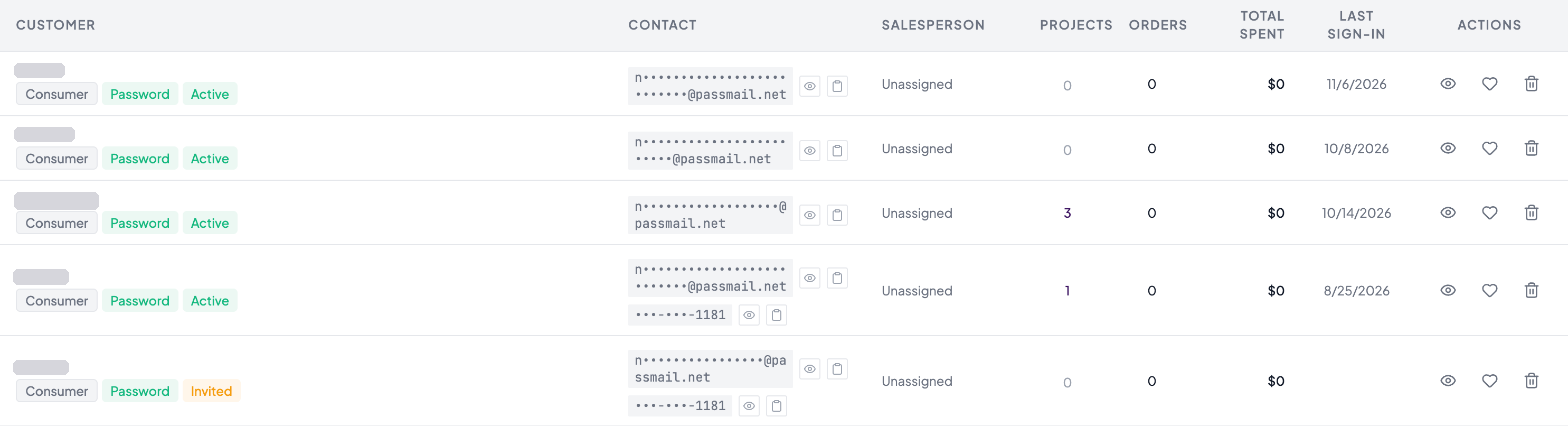
Row actions
- The eye button, or selecting the row, opens the customer’s panel.
- The heart button starts a new list for the customer in Projects & Lists.
- The bin deletes the customer. It needs the Manager or Admin role, and it can’t be undone.
The customer panel
- The left side shows the salesperson, when they joined, their last sign-in (if they’ve signed in) and how they sign in, with the Salesperson picker, Create list and, for Managers and Admins, Delete.
- Resend welcome shows if the customer has never signed in. It emails them their sign-in instructions again.
- The Overview tab shows total spent, orders, lists and products saved, then the customer’s contact details, and their sign-in details and last login, and any internal notes. Notes don’t show in the Customers list.
- The Lists, Orders and Signals tabs show the customer’s projects and lists, orders and website forms, with a count on each tab. Selecting one opens it on top of the panel. Press Esc to go back to the customer, and Esc again to close it.
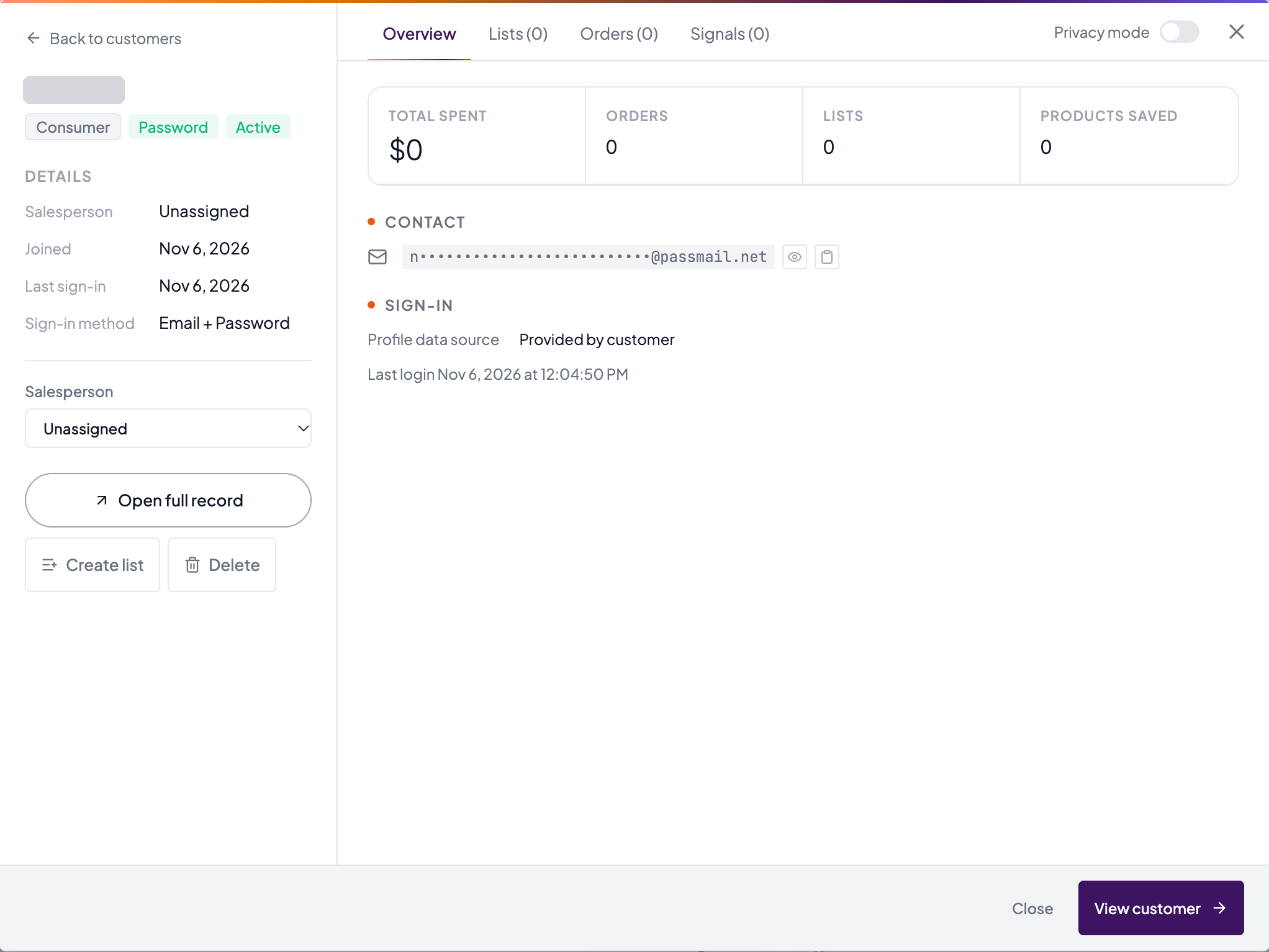
The full record
View customer opens the customer’s own page with Overview, Lists, Orders, Signals and Activity. Activity shows the salesperson history and the 10 products they’ve saved most recently.
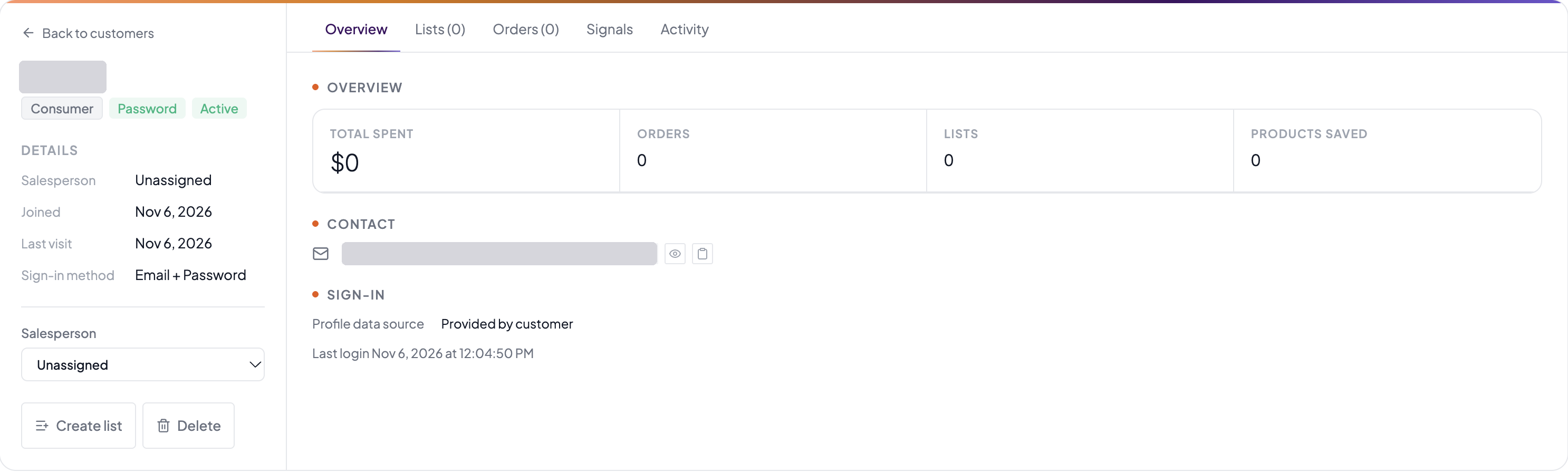
Customers from your previous website
If your customers were moved over from your previous website, their sign-in badge reads Imported and the panel reads “Imported, not signed in yet” until they first sign in on your new site. Then it changes to the way they signed in.
Who can do what
- Staff, Marketing, Manager and Admin users can all open Customers, add a customer, start a list and resend the welcome email.
- Anyone can take an unassigned customer or release one of their own.
- Deleting a customer, assigning a customer to someone else and seeing the Salesperson summary need the Manager or Admin role.
- There’s no screen for changing a customer’s name, email or phone.
Who sees which customers
An Admin chooses this in Settings > Account Settings > Users & Access > Lead visibility, then selects Save changes.
- Everyone, the default, lets every member see every customer.
- Own only limits Staff and Marketing users to their own customers and unassigned ones, and hides By salesperson for them. Opening someone else’s customer from a link reads “This customer could not be opened”. Managers and Admins always see everyone.
With a customer looking at the screen
While Privacy mode is on, the Customers page shows a Customer view is on screen instead of the list, with Back to the last customer you opened, if you opened one. The add customer button is hidden.
An open customer keeps Overview, Lists and Orders, with their name, your contact and the date they joined. Email, phone, sign-in details, Signals, Activity, the last sign-in, the Salesperson picker and history, Create list, Resend welcome, Delete and links to other customers are hidden.