
Orders overview
Orders lists every order placed on your website, with its status, payment and customer, so your team can look one up, follow it through to delivery and answer a customer's questions about it.
Every order a customer places on your website shows up in Orders. Each order has an order status, such as Confirmed or Shipped, and a payment status, such as Paid.
Steps
-
In the sidebar, select Orders.

-
To find an order, type its number, the customer’s email, or their first name or last name in the search box. Search one name at a time: “Smith” finds Jane Smith, “Jane Smith” doesn’t.
-
To narrow the list, choose a Status.
-
For more filters, select Filters, then set a Date Range or a Payment Status.

-
Select an order’s row, or the eye button at the end of it, to open it in a panel. To open the order’s own page, select Open full record.
Good to know
What the list shows
- Order: the order number.
- Customer: the customer’s name and their email, masked. The eye button beside the email shows it for a moment, and the copy button copies it. An order with no name on file shows Guest.
- Items, Total, Status, Payment and Date, the day the order was placed.
- Order, Customer, Total and Status always show. On narrower screens Items, then Date, then Payment drop off.
- The eye button at the end of a row opens the order.
- The list shows 50 orders a page. Use Previous and Next to move between pages.

The cards at the top
The page has two cards: Total Revenue and Total Orders.
- Total Revenue adds up the totals of paid orders across your account, for your search, Status and Date Range. Fully refunded orders are left out, and a partly refunded order counts at its full total.
- Total Orders is every order that matches your search and filters.
- Changing your search or a filter takes you back to the first page.
Export
Export, at the top right, downloads up to 1,000 orders that match your search and filters, across all pages, not just the one on screen.
- The file is named orders-date.csv. It has the order number, customer, email, items, subtotal, tax, shipping, total, status, payment status and date.
- Emails are not masked in the file, so store and share it the way you would any customer list.
- Each export is recorded, so your account has a history of who downloaded customer data: who exported, when, with which filters and how many rows. The search text is never recorded.
- If the export can’t be recorded, you’ll see an error and nothing downloads.
Order status and payment status
These are two different things.
- The order status says how far along the order is: Pending, Confirmed, Processing, Shipped, Delivered or Cancelled. To change it, see Change an order’s status.
- The payment status says whether the order has been paid, such as Paid or Refunded.
- A fully refunded order reads Refunded and no longer counts toward the customer’s Total spent on the Customers page.
- A partly refunded order stays Paid.
- Refunds are made in Stripe, not in Orders. The order status doesn’t change when a refund goes through.
- To find refunded orders, select Filters and set Payment Status to Refunded.
Inside an order
The panel and the full page have the same four tabs. The left side shows the order number, its status and payment, the Total, the date it was Placed and the number of Items. The tabs show the rest.
- Items: each product with its SKU, quantity and price, then the Subtotal, Tax, Shipping and Total.
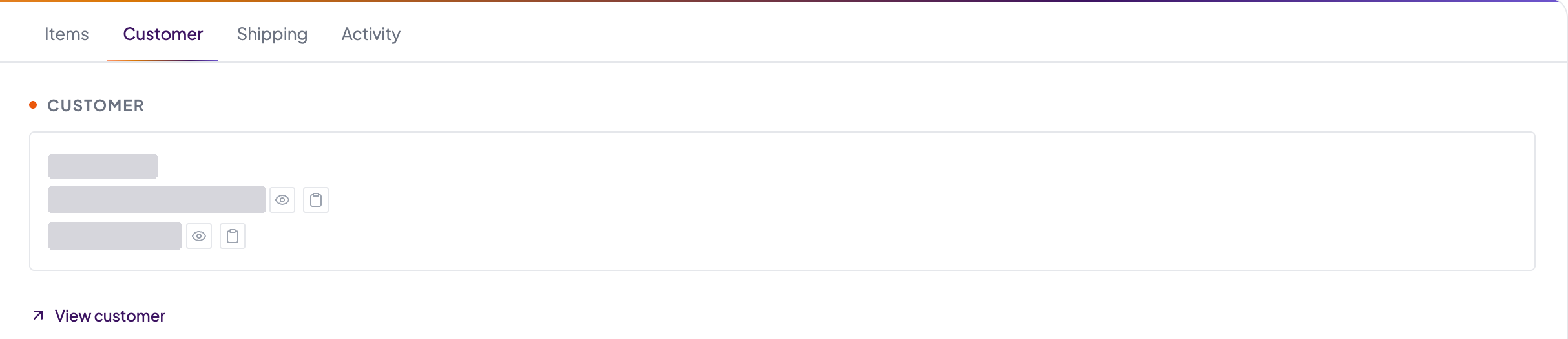
- Customer: the customer’s name, email and phone, masked, with eye and copy buttons. View customer opens their customer record.
- Shipping: the Shipping Address and Billing Address, masked, with eye and copy buttons, then the order’s notes if it has any.
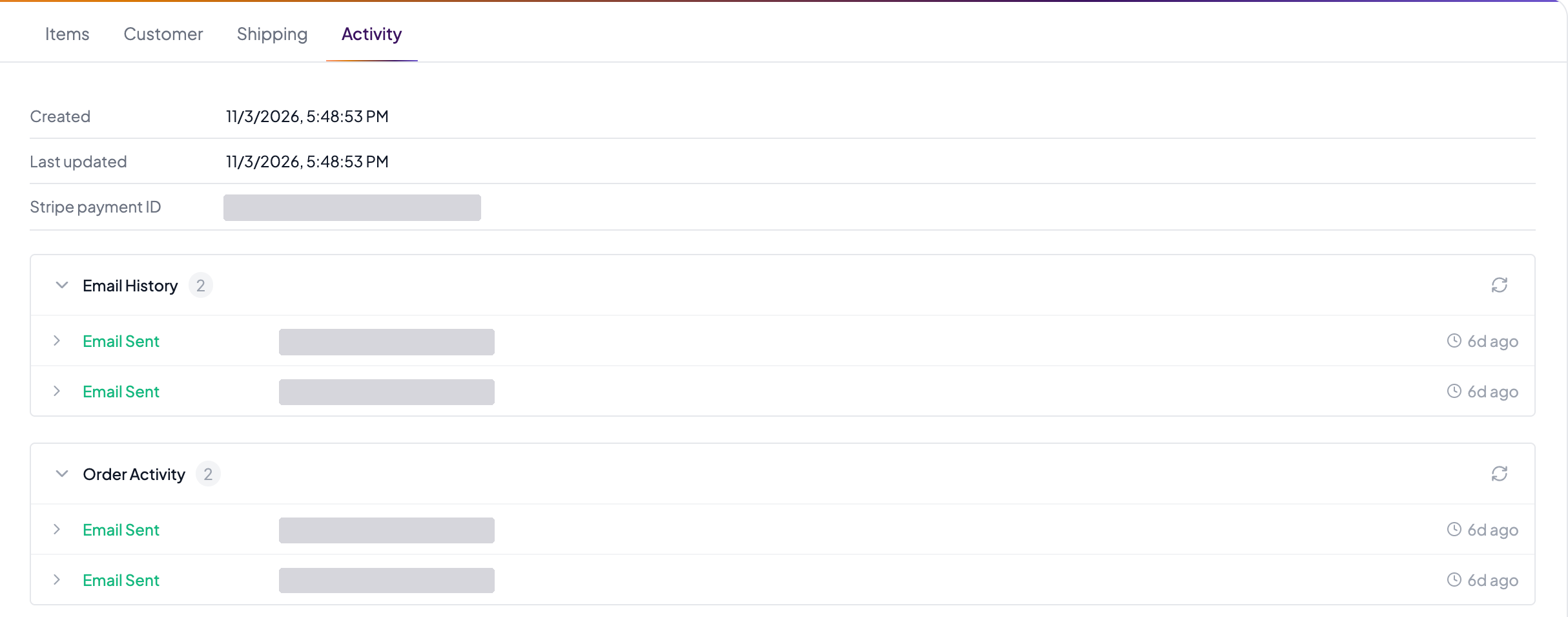
- Activity: when the order was created and last updated, its Stripe payment ID if it has one, and the order’s Email History and Order Activity.
Anything that wasn’t recorded on the order, such as a missing name or price, is left out.

From a customer’s record
A customer’s record has an Orders tab. Selecting an order there opens it on top of the customer.
Who can do this
- Staff, Marketing, Manager and Admin users can all open Orders, look at any order and export.
- Changing an order’s status needs the Manager or Admin role.
- Lead visibility doesn’t apply to Orders. With Own only on, Staff and Marketing users still see every order.
With a customer looking at the screen
While Privacy mode is on, the Orders page shows a Customer view is on screen instead of the list, and Export is gone. An open order keeps Items, Customer and Shipping, with email, phone and addresses masked and no reveal or copy. Activity, the status change and the order notes are hidden.