
Assign a salesperson to a customer
Give a customer a salesperson so everyone knows who looks after them, and so they show up in that person's Mine view and in the Salesperson summary.
Each customer can have one salesperson. A customer with no salesperson shows as Unassigned, and that’s how every new customer starts.
Steps
-
In the sidebar, select Customers.
-
To find customers who need someone, select Unassigned.
-
Select the customer’s row. Their details open in a panel.
-
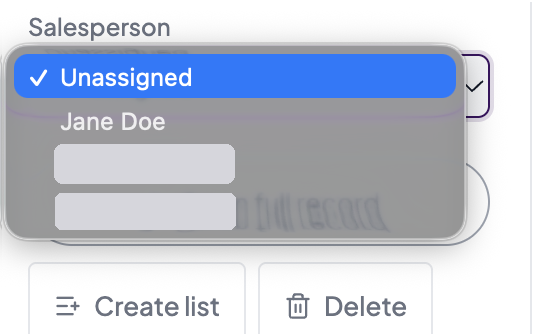
Open the Salesperson menu.
-
Choose the salesperson. You’ll see “Salesperson set to name”, or “Salesperson removed” if you chose Unassigned.
Good to know
What you see in the menu
- Managers and Admins see Unassigned and every active member of the team.
- Staff and Marketing users see Me and Unassigned. Choose Me to take an unassigned customer, or Unassigned to release one of your own.
- If a customer belongs to someone else, Staff and Marketing users see the menu greyed out with “Only a manager can change another salesperson’s record.”
Where it shows
- The customer’s panel and full record show their salesperson. On a wide screen, the Customers list has a Salesperson column too.
- Mine shows the customers assigned to you. By salesperson lets you choose a salesperson and see their customers.
- Managers and Admins see each salesperson’s customers, lists, list value and last activity in the Salesperson summary.
- The customer’s full record keeps a salesperson history on its Activity tab.
- Someone who has left your team still shows by name. Managers see “name (no longer on this account)”.
Lists have their own salesperson
A customer’s project or list has its own salesperson, which can be different from the customer’s.
Customers from your previous website
Customers moved over from your previous website came with the salesperson named on their newest list, when exactly one person on your team has that name. The rest are unassigned. Each list kept its own salesperson.
When Own only is on
If your account’s lead visibility is set to Own only, Staff and Marketing users see only their own customers and unassigned ones. It doesn’t change who can assign. A customer you release stays in your view, because it’s now unassigned.
With a customer looking at the screen
While Privacy mode is on, the Salesperson menu and history are hidden, and the panel shows the salesperson as Your contact.