
Change an order's status
Move an order along as you prepare, ship and deliver it, or cancel it, so your team can see where every order stands.
Each order has an order status that says how far along it is. You change it from inside the order.
Before you start
- You need the Manager or Admin role. For Staff and Marketing users, the status control is hidden.
Steps
-
In the sidebar, select Orders.
-
Select the order’s row to open it.
-
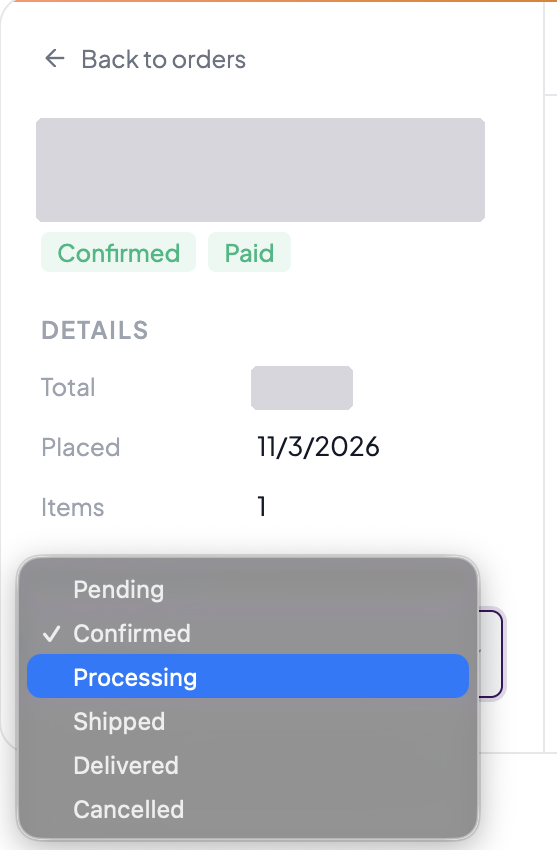
Under Update Status, open the list.
-
Choose the new status.
Good to know
When it saves
The change saves as soon as you choose it, and you’ll see “Order status updated to status”. It’s added to the order’s Activity tab under Order Activity, with who made it. The customer isn’t emailed.
The statuses
You can choose Pending, Confirmed, Processing, Shipped, Delivered or Cancelled. The current status is the one selected.
Cancelling an order
Cancelled is in the same list. Choosing it marks the order Cancelled straight away, with no confirmation. It doesn’t refund the customer or email them, so refund in Stripe if you need to. To undo it, choose another status.
Order status isn’t payment status
The order status says how far along the order is. The payment status, such as Paid or Refunded, is separate and isn’t in this list. A partly refunded order stays Paid.
With a customer looking at the screen
The status control is hidden while Privacy mode is on.