
Print a customer's list
Print a customer's list or save it as a PDF to hand over or send, with or without prices and images.
The printed list is a clean sheet for the customer. It never includes emails, notes, cost or staff detail.
Steps
-
In the sidebar, select Projects & Lists.
-
Select the customer’s list.
-
In the list’s quick view, under its details, select Print. (Print is also on the full list page.)
-
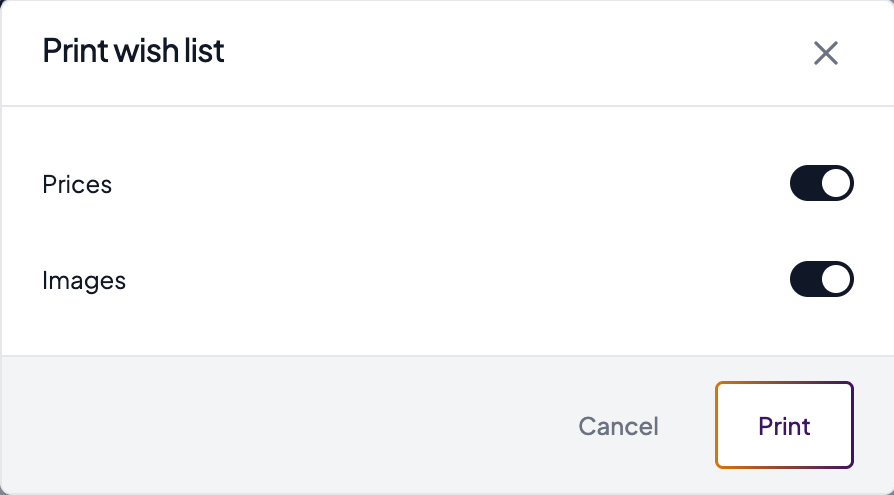
In Print wish list, turn Prices and Images on or off.
-
Select Print. Your browser’s print dialog opens.
-
To print, choose your printer. To get a PDF, choose Save as PDF.
Good to know
What the sheet shows
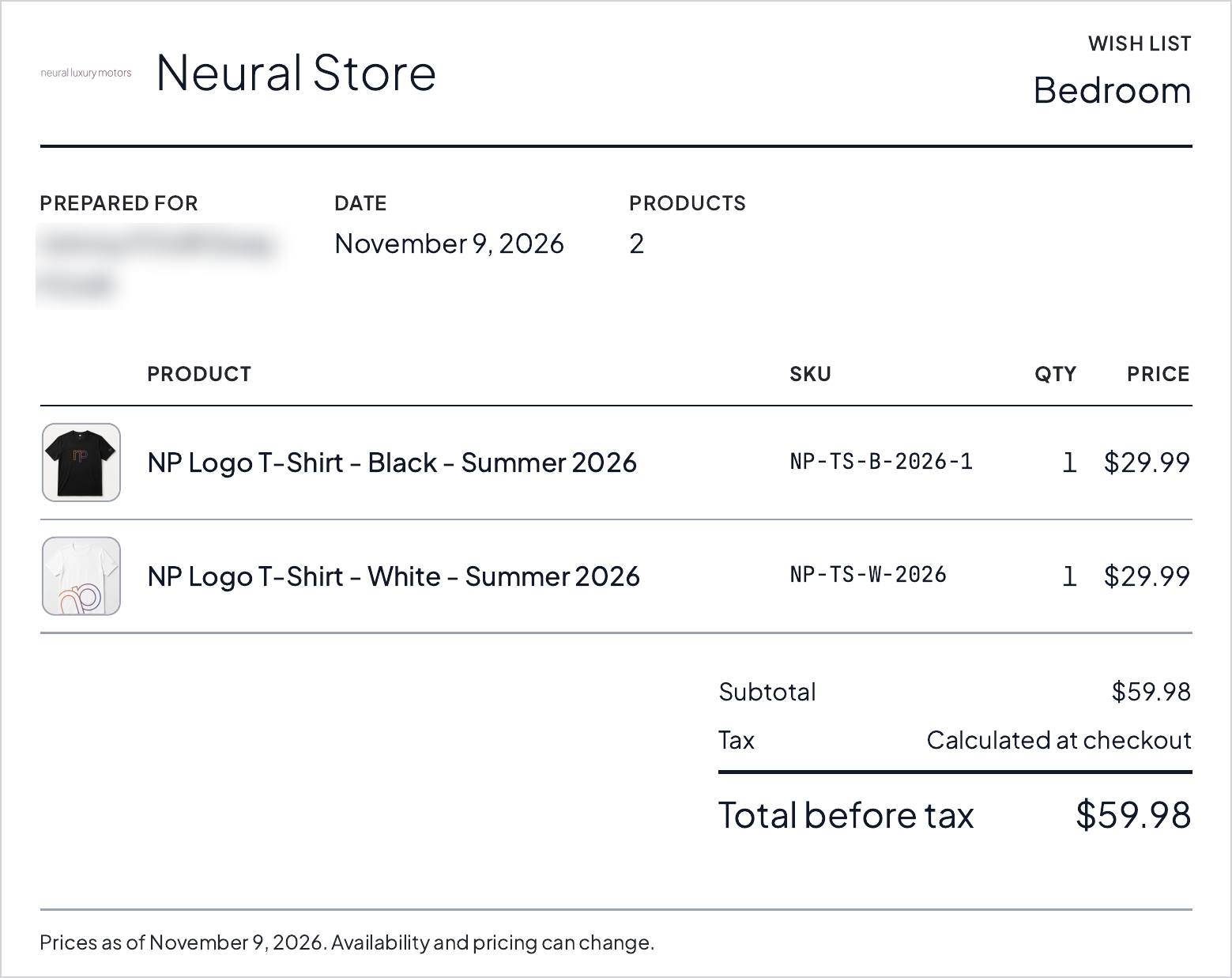
- Your showroom’s logo and name, “Wish list” and the list name.
- Prepared for with the customer’s name, the date and the product count.
- Your contact with the salesperson’s name, only when the list has a salesperson.
- A table of products with SKU, quantity and price. An item with no price shows Call for price.
- The room under the product name (Room: …) when one is set. When the quantity is more than 1, “× quantity = line total” prints under the price.
- Each product’s name as your website shows it. When the manufacturer’s name is different, it prints underneath in a lighter style, labelled “Manufacturer name”.
- Subtotal, a tax line, and the Total.
- A footer that says prices are as of the print date and that availability and pricing can change.
Prices and tax
- Items with no price are left out of the total, and a Not priced line says how many (for example “2 products, ask us”).
- The quote tax on the sheet follows the choice on the list. It only affects the quote.
- If your workspace uses Stripe Tax, the sheet shows Tax: Calculated at checkout and the total reads Total before tax.
- With Prices off, the sheet has no price column or totals.
What it never prints
Customer emails, notes, cost or staff detail. Print works the same with Privacy mode on or off.
Page numbers
Page numbers print in browsers that support them, such as Chrome. Others leave them out.