Top bar overview
The buttons at the top right of every Core page turn on Privacy mode, open your Core agent, search, show your usage and get you help. Use this page to learn what each one does.
The top bar is on every page in Core. From left to right, it holds What’s new, then up to eight buttons: Privacy mode, Launch Website, Agent, Search, Neural Store, Usage, Documentation and Help. Some only show for some people or at some times. Each section below says when.

Steps
- Look at the top right of any page in Core.
- Hold your pointer over a button to see what it does.
- Select the button you need.
Good to know
What’s new
What’s new opens a page of the feature releases, announcements and promotions Neural Partners has sent to your account for your role. Posts are listed newest first, with the one you select beside the list. A number on it shows how many you haven’t read.
Privacy mode
- The eye button turns Privacy mode on. Use it before you turn your screen toward a customer.
- While it’s on, the button is a purple Privacy on pill. Select the pill to turn Privacy mode off.
- It’s set per browser and stays on until someone turns it off.
- For what it hides, see Use Privacy mode with a customer.
Launch Website
Launch Website opens your site in a new tab. It only shows when your account has a site.
Agent
- The agent button (AI Agent) opens your Core agent in a panel at the side of the page, so you can ask it something without leaving what you’re doing. On Home, it opens the agent tile instead.
- The conversation is the same one you see in the agent tile on Home.
- While Privacy mode is on, the agent button disappears. It’s also hidden if you’ve switched your assistant off.
Search
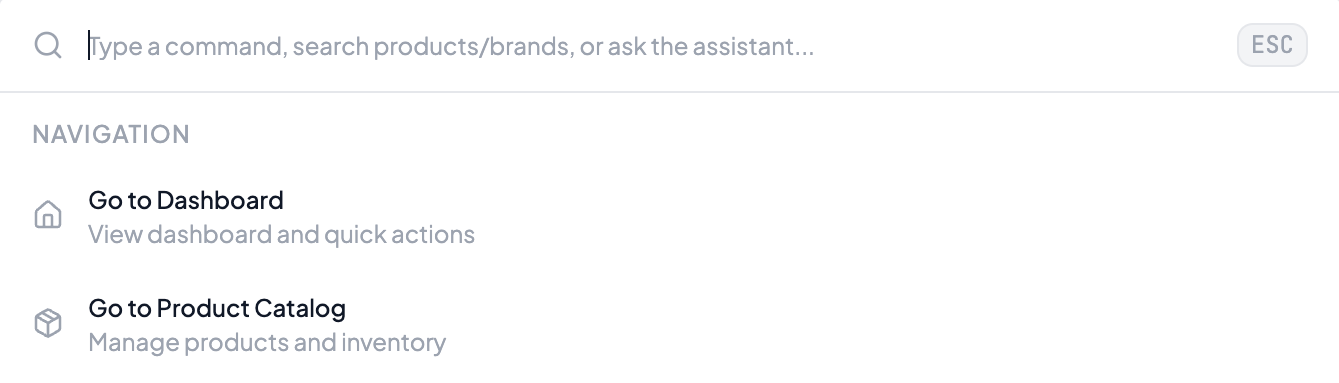
- The search button opens search. You can also press Cmd+K on Mac or Ctrl+K on Windows.
- Type a command, or search your products and brands. Type two or more letters and an Ask Neural Assistant row appears when your agent is on.
- Before you type, search lists places to go, such as Go to Dashboard and Go to Product Catalog.
- Use the up and down arrow keys to move through the list. Press Enter to choose, or Esc to close.
Neural Store
The store button opens the Store page, where Admins can see the plans Neural Partners offers. With no plan yet, each has a Subscribe Now button. With one, you see Manage Subscription instead.
Usage
- The usage button opens a small panel with your plan and how much of this month’s agent allowance is used. You can also press Cmd+U or Ctrl+U.
- It shows for the Marketing role and above, and is hidden while Privacy mode is on.
- It shows the share used, the tokens used out of your allowance, and how many days are left until it resets on the 1st of each month (UTC).
- Unused allowance doesn’t carry over to the next month. When you’re running low, the panel says you’ll run out before the reset.
- View usage opens the full usage page, which only Admins can open. Plan options isn’t available yet.
Documentation
Documentation opens the Core product docs inside the app.
Help
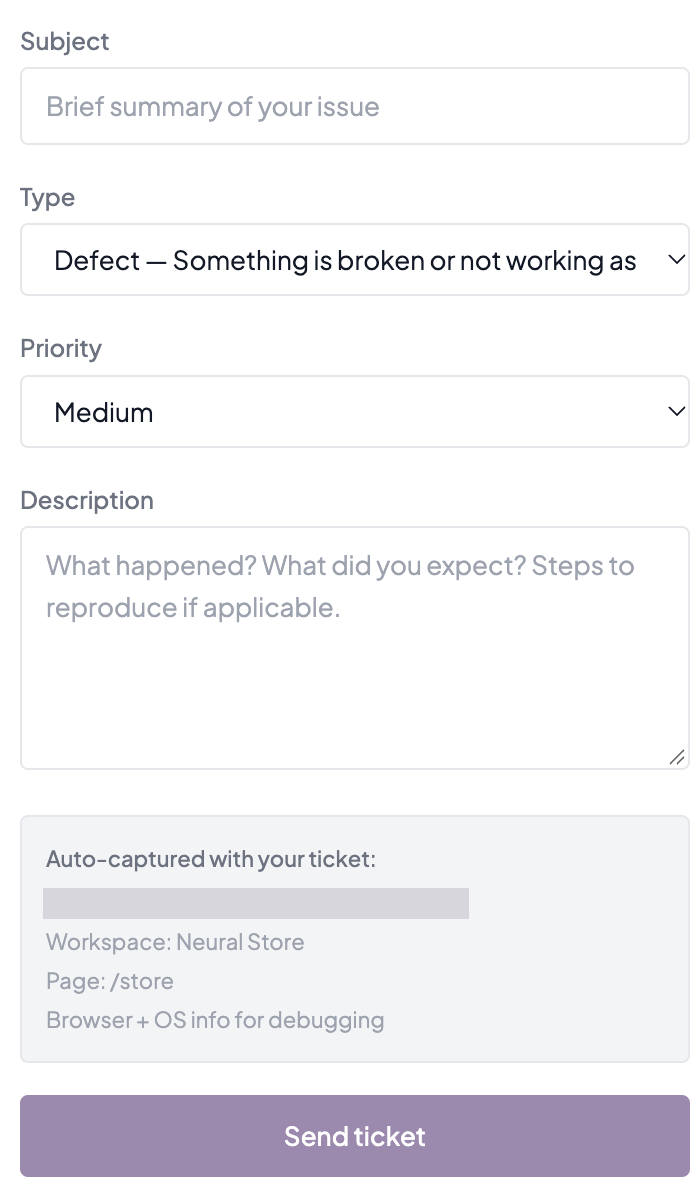
- The help button opens a ticket form. You can also select Help at the bottom of the sidebar.
- It shows for every signed-in user in any role, unless you’ve switched your assistant off in AI Settings. While Privacy mode is on, Help shows an Email support button instead of the ticket form.
- Fill in a Subject, a Type, a Priority and a Description, then select Send ticket.
- Type is Defect, Feature Request, How-To or General. Priority is Low, Medium, High or Urgent.
- Your email and the page you were on are attached for you.
- When the form shows “Ticket received”, your ticket is with the Neural Partners support team. The form says to expect a reply within 48 hours, usually.
- There’s no way to attach a screenshot. Describe what you see in the Description.
- If the form says “Could not reach the ticket system”, select Send ticket again. The form keeps what you typed.
- To reach a particular person, name them in the Description.
- For the whole form, see File a help ticket.